How to Edit STL Files: Tools and Techniques That Work
12 min
- What Editing an STL Actually Means
- Five Things You Can Edit on an STL
- The Right STL Editor for Each Job
- Changing STL Dimensions Precisely: Mesh Scaling vs CAD Route
- How to Edit STL Files: The Universal Workflow
- How to Edit STL Files Online (Browser-Based)
- After Editing: The 3-Point Re-Check
- FAQ about Edit STL Files
- From Edited File to Printed Part
Key Takeaways
- You can edit STL files without going back to CAD: mesh editors handle scaling, cutting, combining, and sculpting directly on the triangle mesh.
- STL files carry no feature history, so CAD-style edits (change one hole diameter, thicken one wall) are not possible directly: you either edit the mesh or convert it back to a solid model first.
- The right STL editor depends on the job: Tinkercad or 3D Builder for quick scaling, Meshmixer for cutting and combining, Blender for sculpting, and FreeCAD or Fusion 360 when dimensions must be exact.
- Non-uniform scaling is the most common self-inflicted edit injury: it turns round holes into ellipses and thins out walls that used to be structural.
- After any edit, re-check three things before slicing — units and dimensions, watertightness, and triangle count — because edits introduce new problems as often as they fix old ones.
You downloaded a model, and it is almost right: the bracket is 5mm too short, the logo should sit on the other side, two parts would work better joined as one. You can edit an STL file to make all of those changes without going back to CAD, and the free tools to do it are one download away. This guide covers how to modify STL files without CAD: what editing an STL actually means, the five kinds of changes mesh tools handle well, which editor fits which job, and the workflow that gets an edited file to the printer cleanly.
One boundary first: if the file is *broken* (holes, non-manifold edges, flipped normals), that is a repair job, and our STL repair guide handles it. This page is for edits you *want* to make, not defects you need to fix.
What Editing an STL Actually Means
An STL file stores a 3D shape as a mesh of connected triangles: geometry only, with no feature history, no parametric dimensions, and no memory of how the part was designed. Editing an STL means working on that triangle mesh directly, moving vertices, adding or removing triangles, or transforming whole regions.
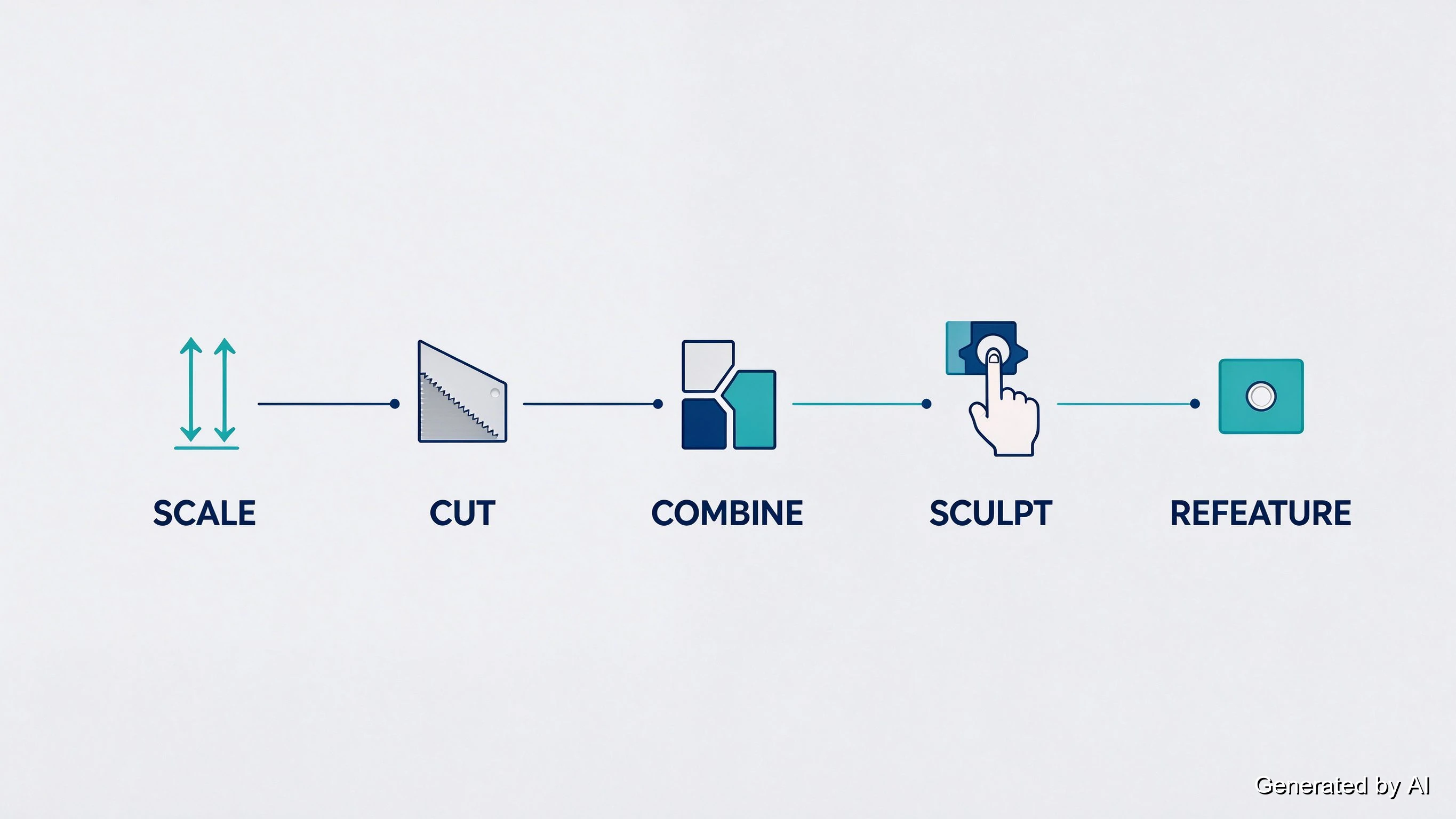
Concretely, five kinds of operations are practical on a mesh: scaling a model up or down, cutting it into pieces, combining several meshes into one, sculpting surfaces by pushing and smoothing, and refeaturing (adding thickness, shelling out cavities, or punching holes). Anything outside that list, like "make this hole 2mm wider while leaving the others alone," requires knowing which triangle belongs to which design feature, and the STL simply does not record that.
That limitation drives the real decision behind every edit request. Before choosing a tool, weigh three factors: the type of change (transform, combine, or feature-level), whether the original design file exists (a STEP or native CAD file makes mesh editing unnecessary), and how precise the result must be (visual tolerance or engineering tolerance). Small transform edits live happily in mesh tools; feature-level changes with tight tolerances point toward converting the mesh back into CAD geometry, covered later in this guide.
If the mesh-versus-solid distinction is new to you, our guide to what an STL file actually is covers the format's structure and why it became the default exchange format.
Five Things You Can Edit on an STL
Nearly every practical edit falls into one of five buckets, each with its own difficulty profile:
Scale and resize, the easiest edit and the most requested. Uniform scaling keeps proportions; done in seconds in most tools. The trap hides in non-uniform scaling (stretching one axis only), covered in the precision section below.
Cut and split: slicing a model into printable pieces. Separating a figure into body and base, cutting an oversized part to fit a printer bed, or splitting at a natural seam for cleaner painting. Modern tools cut along a plane in seconds; the skill is choosing where the seam goes.
Combine and boolean: merging multiple STLs into one solid, or using one mesh as a cutter on another. Logos embossed onto cases, slots cut into brackets, parts unioned for single-piece printing. Powerful, but boolean operations on sloppy meshes fail often, so clean geometry matters here.
Sculpt and smooth, freeform surface editing: pushing, pinching, inflating, and smoothing like digital clay. Blender's sculpt mode is the heavyweight here. It is also the easiest way to wreck a printable model, so it rewards restraint.
Refeature: adding properties the original lacked. Thickening thin walls for strength, hollowing to save resin or filament, adding flat cutouts where a bolt head needs clearance. These edits straddle the mesh/CAD boundary — small ones work in mesh tools, precise ones belong in CAD.
Editing STL models rarely stays in one bucket (a typical real job combines two or three), which is why the workflow section at the end treats edits as a sequence rather than a single action.
The Right STL Editor for Each Job
Tool lists are everywhere. What they rarely give you is the decision: which editor for *your* change. This table reverses the usual order:
| Your job | First pick | Backup | Why |
|---|---|---|---|
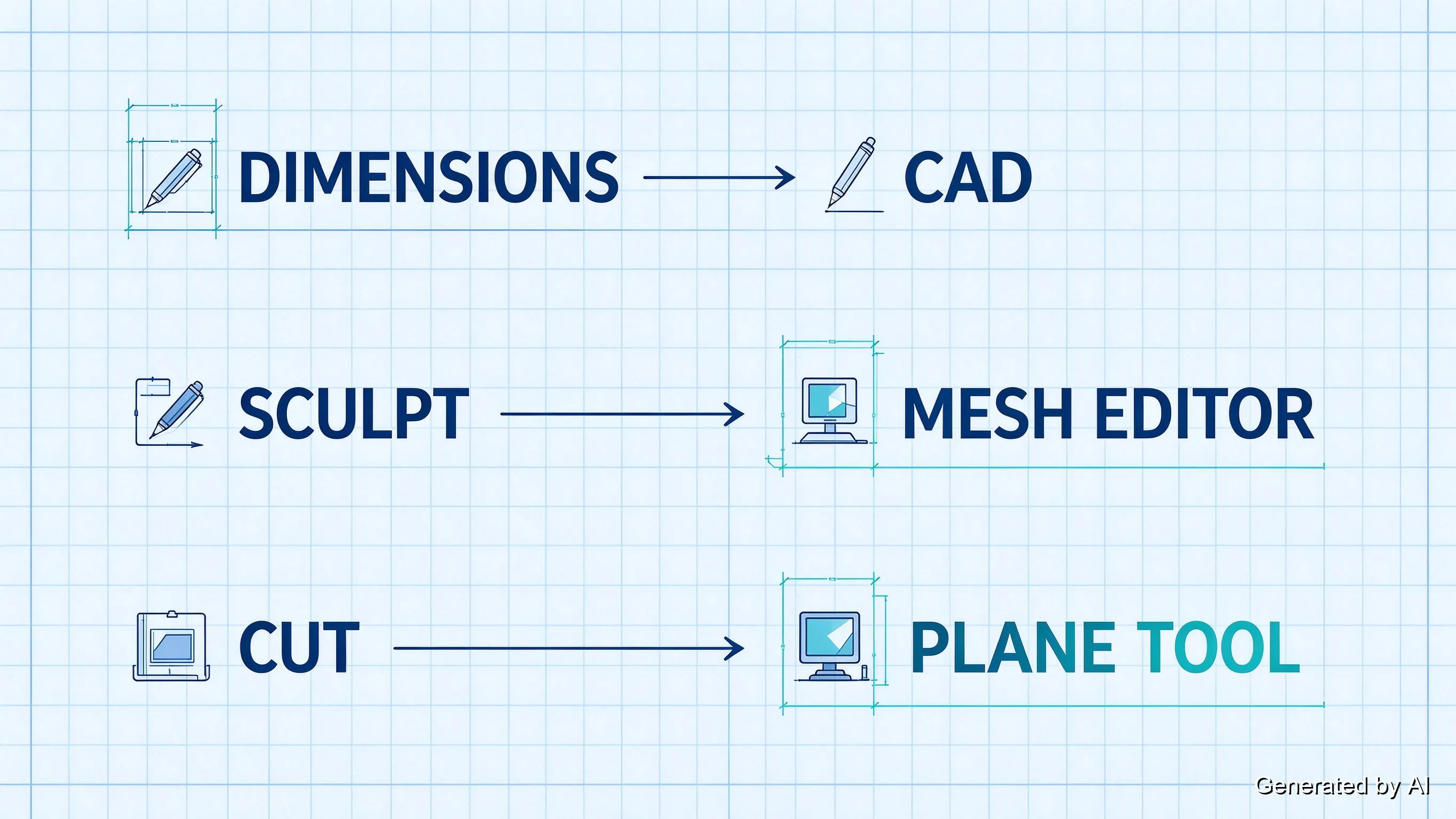
| Quick scaling, simple mashups | Tinkercad | 3D Builder (Windows built-in) | Browser or preinstalled, learn in minutes, no install |
| Cutting and splitting | Meshmixer | PrusaSlicer's cut tool | Plane cut with precise control; slicer cut is cruder but zero extra software |
| Combining and boolean ops | Meshmixer | Blender | Boolean tools tuned for 3D-print meshes, not animation |
| Sculpting and smoothing | Blender | SculptGL (browser) | Full sculpt engine free; SculptGL for no-install touch-ups |
| Exact dimension changes | FreeCAD | Fusion 360 | Parametric editing after mesh-to-solid conversion |
| Mesh cleanup before editing | MeshLab | — | The standard for cleaning and inspecting meshes |
A few honest boundaries between them. Meshmixer remains the most purpose-built mesh editor for 3D printing (cut, join, hollow, and repair in one free package), but Autodesk stopped developing it in 2021; version 3.5.471 is still downloadable and still works, and thousands of makers run it daily, just do not expect updates or official support going forward. Blender is more powerful and actively developed, with a learning curve to match; for pure print-mesh edits it is usually more tool than the job needs. FreeCAD and Fusion 360 play a different game entirely: they convert the mesh into a solid you can edit parametrically, which is the only route to true CAD-style changes (Fusion's personal-use license is free with limits — 10 active editable documents at the time of writing, so check the current terms).
Whichever you choose, one habit separates smooth edits from frustrating ones: inspect and clean the mesh before editing, because boolean and cut operations inherit every flaw the input carries. MeshLab or the inspection view of your editor takes a minute and prevents most mid-edit failures.
Changing STL Dimensions Precisely: Mesh Scaling vs CAD Route
"How do I change the size of an STL?" has two answers, and choosing wrong is the most common way an edit goes sideways.
Route one: mesh scaling. Uniform scaling (all three axes equally) is safe and instant, and a part printed at 80% or 150% comes out dimensionally predictable. The danger is non-uniform scaling: stretching one axis to make a part longer. Round holes become ellipses. Walls that were 2mm thick come out at 1.4mm. Anything designed to mate with another part stops fitting. Non-uniform scaling is a legitimate tool for organic shapes, but on functional parts it silently breaks geometry in ways you discover at the printer.
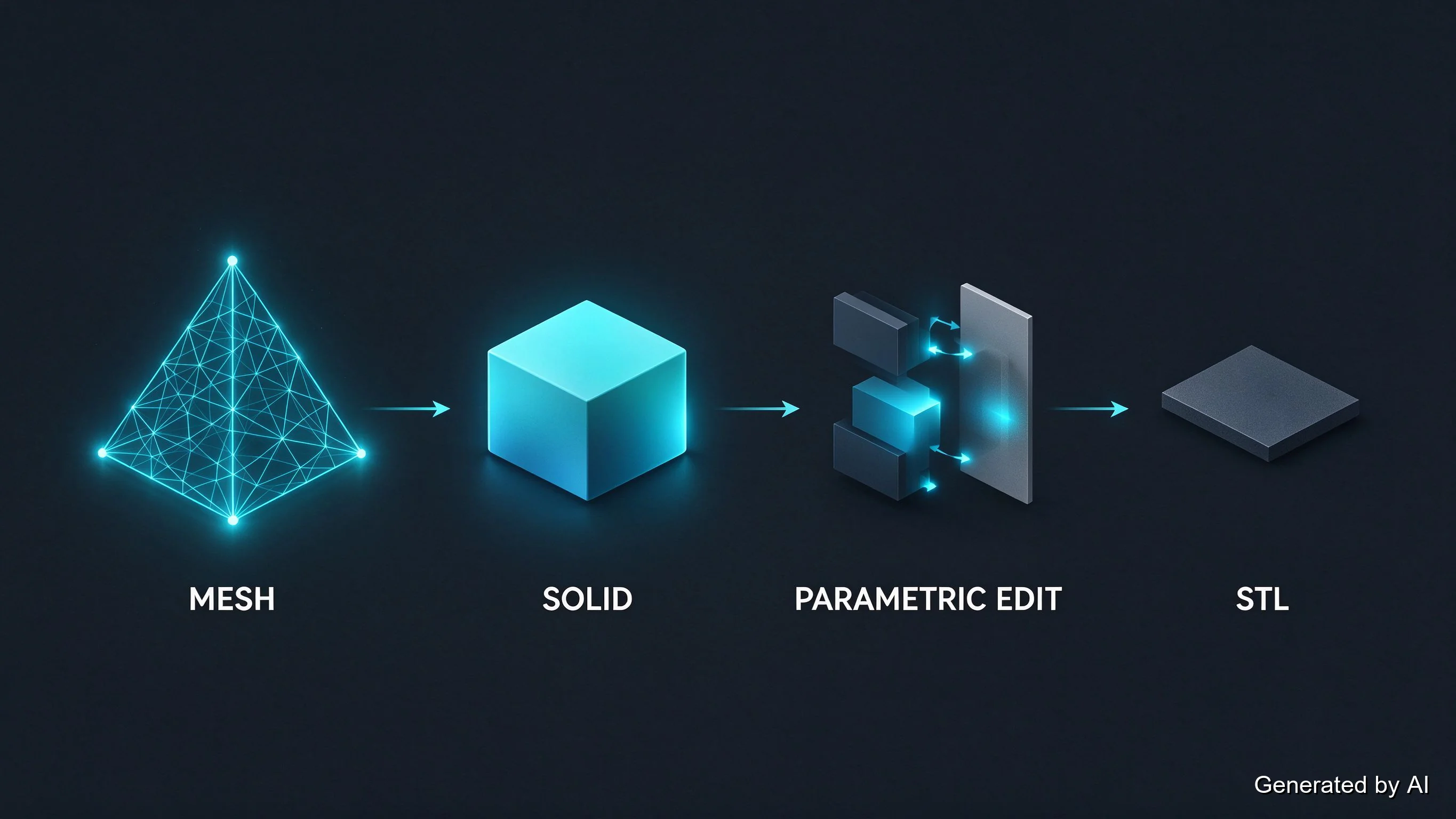
Route two: convert to solid, then edit parametrically. When the change is feature-level (move a hole, thicken one wall, resize one boss), the honest path is mesh-to-CAD: import the STL into FreeCAD (Part workbench) or Fusion 360 (mesh-to-BREP), convert the triangles into a solid body, edit dimensions parametrically, and export back to STL. This route takes longer and works best on prismatic, machine-like parts; organic sculpts convert poorly. But it is the only route where "make this hole 8mm instead of 6mm" is a precise, verifiable operation rather than a hope.
Before committing to either route, check whether the original model file exists at all. Printables and Thingiverse listings frequently include STEP or Fusion archives alongside the STL, and a thirty-second download beats an hour of reverse engineering.
How to Edit STL Files: The Universal Workflow
Specific buttons differ between tools, but the workflow that keeps edits out of trouble is the same everywhere:
- Import and inspect. Open the file and confirm what you actually have: real dimensions (STL units are unitless, and "100" might mean millimeters or inches), orientation, and mesh condition. The two-minute inspection routine in our STL viewing guide covers this with free tools.
- Repair before editing. If the mesh has holes or bad edges, fix them first: cuts and booleans performed on broken geometry inherit and amplify the breakage. One repair pass before editing saves an hour of mystery failures after it.
- Make the edit, following the task-to-tool table above. Save a copy of the original first; mesh edits do not have undo history that survives a crash.
- Export as STL in binary format (smaller files, universally accepted), and give the export a quick visual once-over in the same tool.
- Re-check before slicing — the three-point inspection below, because editing introduces problems as often as it solves them.
How to Edit STL Files Online (Browser-Based)
For small changes on a borrowed computer, browser-based editors remove the install step entirely. SculptGL runs sculpting tools in the browser for free, and several commercial web editors handle basic scaling and merging of STL files without registration.
The boundary is equally clear: online tools suit quick, simple changes on files you are not worried about uploading. Multi-step edits on large meshes run slowly in a browser tab, and anything confidential deserves the caution you would give any cloud upload: check what the service does with your file before you hand it over. For real editing sessions, a desktop tool on your own machine remains the better workshop.
After Editing: The 3-Point Re-Check
Edits introduce their own failure modes, and they show up at the printer if nobody looks. Three checks take five minutes:
- Units and dimensions — especially after scaling. Re-measure the model in a viewer and confirm it is the size you intended (and that a uniform scale did not quietly become non-uniform).
- Watertightness — especially after cuts and booleans, which are the classic way new holes and non-manifold edges appear. A quick wireframe inspection catches them, and a repair pass closes what it finds.
- Triangle count — especially after sculpting, where edit history can balloon a clean model into a file your slicer chokes on. If the count exploded, reducing the mesh brings it back down at no visible cost.
With those three clean, the edited file is as trustworthy as the original — and uploading it for an instant quote runs the same automated manufacturability checks an engineer would, before anything reaches a printer.
FAQ about Edit STL Files
Q: Can you edit an STL file?
Yes — mesh editors handle scaling, cutting, combining, sculpting, and refeaturing directly on the triangle mesh. The limit is feature-level precision: without a feature history, "change one hole's diameter" requires converting the mesh back into a solid CAD model first.
Q: What is the best STL editor?
There is no single best one; the answer depends on the job. Tinkercad and 3D Builder for quick scaling, Meshmixer for cutting and combining, Blender for sculpting, MeshLab for cleanup, and FreeCAD or Fusion 360 for exact dimension changes. The task-to-tool table above gives the full matching.
Q: How do I change the size of an STL file?
Uniform scaling in any mesh editor: Tinkercad, Meshmixer, and Blender all do it in seconds. Scale all three axes together for predictable results; stretching a single axis distorts holes and wall thickness on functional parts.
Q: Can I edit an STL file online?
Yes — browser editors like SculptGL handle sculpting without installation, and several web tools do basic scaling and merging. They suit small, simple changes; multi-step edits on large meshes belong in desktop software.
Q: How do I convert an STL file to edit it in CAD?
Import the STL into FreeCAD's Part workbench or Fusion 360, convert the mesh into a solid body, edit parametrically, and export back to STL. The route suits prismatic, machine-like parts with feature-level changes; organic sculpts convert poorly.
Q: Why is editing an STL file so hard?
Because STL stores only triangle geometry — no feature history, no dimensions, no design intent. The file cannot tell the editor which triangles form "the hole" or "the wall," so CAD-style precise edits are impossible without converting the mesh back into a solid model first.
From Edited File to Printed Part
Editing an STL is a solved problem once you match the tool to the change: transforms and combinations live in mesh editors, precision lives in the CAD round-trip, and the five-minute re-check catches the problems edits introduce. Do that, and the model you downloaded becomes the model you needed — ready to print at home, or ready for a service when the tolerances and materials call for production equipment.
Keep Learning
3D Printer Tools: Essential Accessories for 3D Printing Projects
If you own a 3D printer and want to make the printing process as smooth as possible and improve your 3D printing experience, the right 3D printer tools are worth equipping. This guide will recommend you common tools related to 3D printers, and you can choose according to your actual needs. 1. Print bed tools Print bed tools are important auxiliary tools for 3D printing. The following tools can reduce print failures caused by poor adhesion or damage to the bed surface. Glue sticks: Commonly used in FDM......
The Importance of 3D Scanners in 3D Printing: Improving Precision and Efficiency
3D printing can quickly transform digital models into entities, while 3D scanning generates digital models by capturing the three-dimensional shape of an object. The two are closely linked to form an efficient cycle, which not only improves production efficiency, but also opens up new ideas for design and manufacturing, and promotes the realization of a variety of applications from prototyping, customization to reverse engineering. Source: https://www.sculpteo.com/en/3d-learning-hub/basics-of-3d-print......
How to Edit STL Files: Tools and Techniques That Work
Key Takeaways You can edit STL files without going back to CAD: mesh editors handle scaling, cutting, combining, and sculpting directly on the triangle mesh. STL files carry no feature history, so CAD-style edits (change one hole diameter, thicken one wall) are not possible directly: you either edit the mesh or convert it back to a solid model first. The right STL editor depends on the job: Tinkercad or 3D Builder for quick scaling, Meshmixer for cutting and combining, Blender for sculpting, and FreeC......
Image to STL: Convert Images to STL Online for Free
Key Takeaways You can convert an image to STL — the right method depends on what the image shows: a photo becomes a lithophane relief, a logo becomes an extruded shape, or an object photo becomes an AI-generated mesh. Free online converters handle all three methods in a browser, no software install required — pick one based on your image type, not on a tool's marketing. Lithophanes encode photo brightness as thickness; the result prints in translucent filament and reveals the image under backlight. So......
How to Open STL Files: 4 Free Ways (Online, Windows, Mac)
Key Takeaways The fastest way to open an STL file is to drag it into a free online 3D viewer — no installation, works on any device with a browser. On Windows, the built-in 3D Viewer app ships with Windows 10 but may be missing on recent Windows 11 builds, and Paint 3D left the Microsoft Store in November 2024 — the built-in route is fading. macOS and phones ship with no STL viewer at all; a browser-based viewer covers both without installing anything. STL files carry no units. Always confirm the file......
OrcaSlicer vs Prusa, Bambu & Cura: All Features, Pros & Cons Compared
Orca Slicer is gaining fans fast, but is it really better than the slicers we’ve trusted for years? Whether you're troubleshooting stringy overhangs, dialing in support settings, or optimizing for speed, your slicer software plays a massive role in how your final print turns out. And with the growing popularity of Orca Slicer, especially among Bambu Lab users and tinkerers looking for more control, the question arises: how does it actually stack up against Cura, PrusaSlicer, and Bambu Studio? In this ......