STP to STL: How to Convert STEP Files for Printing
10 min
- What Is a STEP (STP) File?
- STEP vs STL: Two Formats, Two Jobs
- How to Convert STP to STL
- STL Back to STEP: The Reverse Is Not a Conversion
- When You Can Skip Converting Entirely
- FAQ about STP to STL Conversion
Key Takeaways
- STP to STL conversion is a one-way translation: a STEP file holds exact, editable CAD geometry, and converting to STL replaces it with a triangle mesh approximation — the STEP original should always be kept.
- A step file (
.stepand.stpare the same format) is the standard exchange format of the CAD world; it stores precise surfaces and design intent, not triangles. - Converting is free and fast — CAD software export, desktop converters, and online tools all work — but the mesh quality is only as good as the tolerance settings you choose.
- STL to step is not really a conversion: a mesh has no parametric geometry to restore, so "converters" that claim it mostly wrap triangles in a STEP shell that CAD still cannot edit.
- If your print service accepts STEP uploads, you can skip converting entirely and let the factory mesh the model at production quality — check the accepted formats before you translate anything.
An STP file is how engineers speak; an STL file is how printers listen. Converting between them is a translation, and like all translations it can lose something in transit: usually accuracy, sometimes scale, occasionally the whole feature tree. This page covers both sides of that translation: what each format actually stores, how to convert stp to stl without degrading your model, why the reverse trip is not really possible, and the one path that skips conversion altogether. For the wider map of every format a printer meets, our 3D printing file formats guide keeps the full list; this page goes deep on the pair that carries the most freight between design desks and print farms.
What Is a STEP (STP) File?
A step file is the official translator of the CAD world. STEP (Standard for the Exchange of Product model data) is an ISO standard (ISO 10303) and the de-facto step file format for moving exact 3D geometry between different CAD systems, and .step and .stp are two file extensions for the same format — the shorter one stuck simply because old systems limited extensions to three letters. When a mechanical engineer sends a part to a colleague using different software, or a supplier quotes a design they did not model, the file in transit is usually a STEP.
What makes it special is what it stores underneath: not a mesh of triangles but parametric solid geometry, mathematically exact surfaces (the boundary representation, B-rep, that CAD systems speak natively), with units, feature structure, and often full assembly hierarchy attached. Open a STEP file in CAD and a cylinder is still a true cylinder, defined by an axis and a radius, editable as such. That is the property every downstream format trade-off flows from: precision in, precision out, and a designer can still change things.
The STL side of the comparison lives differently. An STL file stores only a skin: a list of triangles that approximate the outer surface, with no units, no history, and no curves. That is a deliberate simplification: slicers want surfaces, and triangle soups are cheap to process. But it means STL is a print-ready snapshot, while STEP is the living design. Neither is better; they have different jobs, which is exactly why the conversion question keeps coming up.
STEP vs STL: Two Formats, Two Jobs
The differences reduce to a short table, and every row of it follows from the mesh-versus-geometry distinction:
| Aspect | STEP (STP) | STL |
|---|---|---|
| Geometry | Exact parametric surfaces (B-rep) | Triangle mesh approximation |
| Editability | Fully editable in CAD | Mesh edits only (repair-scale) |
| Curves and holes | True circles and cylinders | Chord approximations (polygons) |
| File size | Compact for complex parts | Grows fast with detail |
| Multi-part data | Assembly structure supported | One mesh per file |
| Slicer compatibility | None (conversion needed) | Universal |
Two rows deserve a comment. Curves and holes: a circular hole in STL is a polygon with however many sides the exporter chose, which is why a "16-sided hole" on a printed part traces back to conversion, not printing. File size: a STEP of an intricate part can be smaller than its STL, because one exact equation beats ten thousand triangles.
Where does that leave the mesh formats in between? OBJ and 3MF are also mesh formats (OBJ adds colors and textures that STL lacks; 3MF modernizes the container). The print-side format rivalry (3MF versus STL) is its own comparison, covered in our 3MF vs STL guide; the STEP question is upstream of all of it, because the mesh family all share the same limitation STEP does not: they describe a surface, not a solid.
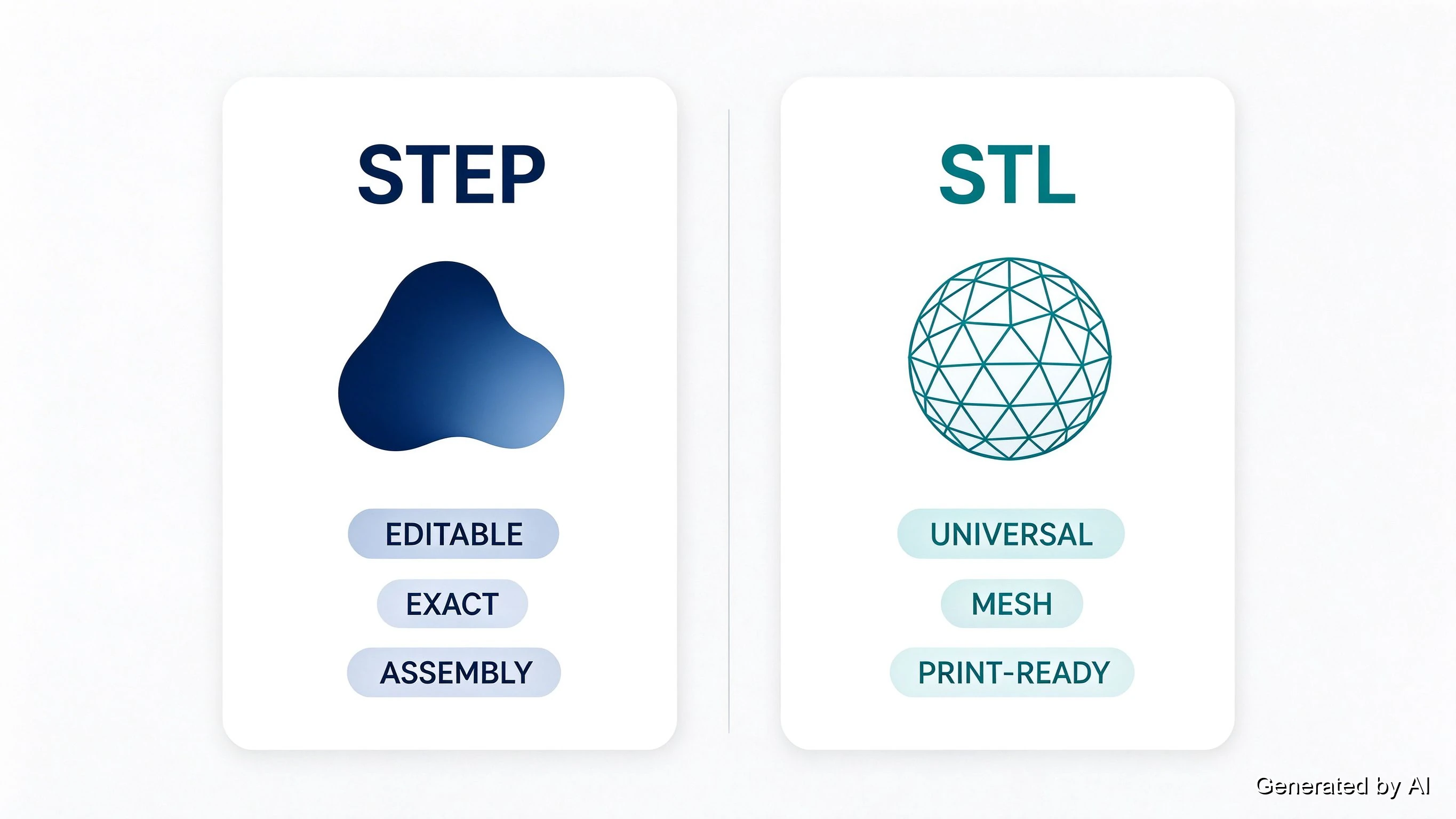
STEP card vs STL card: editable exact vs mesh print-ready
How to Convert STP to STL
The conversion is free, fast, and available at three levels of effort, all producing the same thing: a mesh exported from your exact geometry.
Route one, from CAD. If the STEP came from your own or a colleague's CAD seat, exporting STL directly from there is the most faithful path — you keep control of the mesh settings and can inspect the result while the original geometry is still on screen. Every CAD package exports STL; look for chord height (deviation) and angle tolerance in the export dialog.
Route two, desktop converters. Standalone conversion tools handle STEP-to-STL without a CAD license, and the better ones expose the same tolerance controls. This is the right lane for engineers who receive STEP files and just need printable meshes.
Route three, online converters. Browser tools are the fastest for a one-off: upload, convert, download. The trade-offs are file-size limits, default tolerances you cannot inspect, and the general caution of uploading proprietary designs to a third party; fine for open models, think twice for production parts.
Whatever the route, three checks separate a clean conversion from a quiet disaster:
- Units. STEP carries units; STL carries nothing. A model authored in inches, converted on a tool that assumed millimeters, arrives at the printer 25.4× off. Verify the bounding-box dimensions after conversion, every time.
- Tolerance. The chord-height (deviation) setting controls how closely triangles hug true curves. Defaults tend to be loose, fine for brackets, visibly faceted on curved consumer parts; tightening it grows the file and the triangle count, so tune per part rather than globally.
- Mesh integrity. Conversion can expose or create mesh errors (holes, inverted normals, non-manifold edges). A quick pass with mesh-repair tooling before slicing saves a failed print; our STL repair guide covers the fixes.
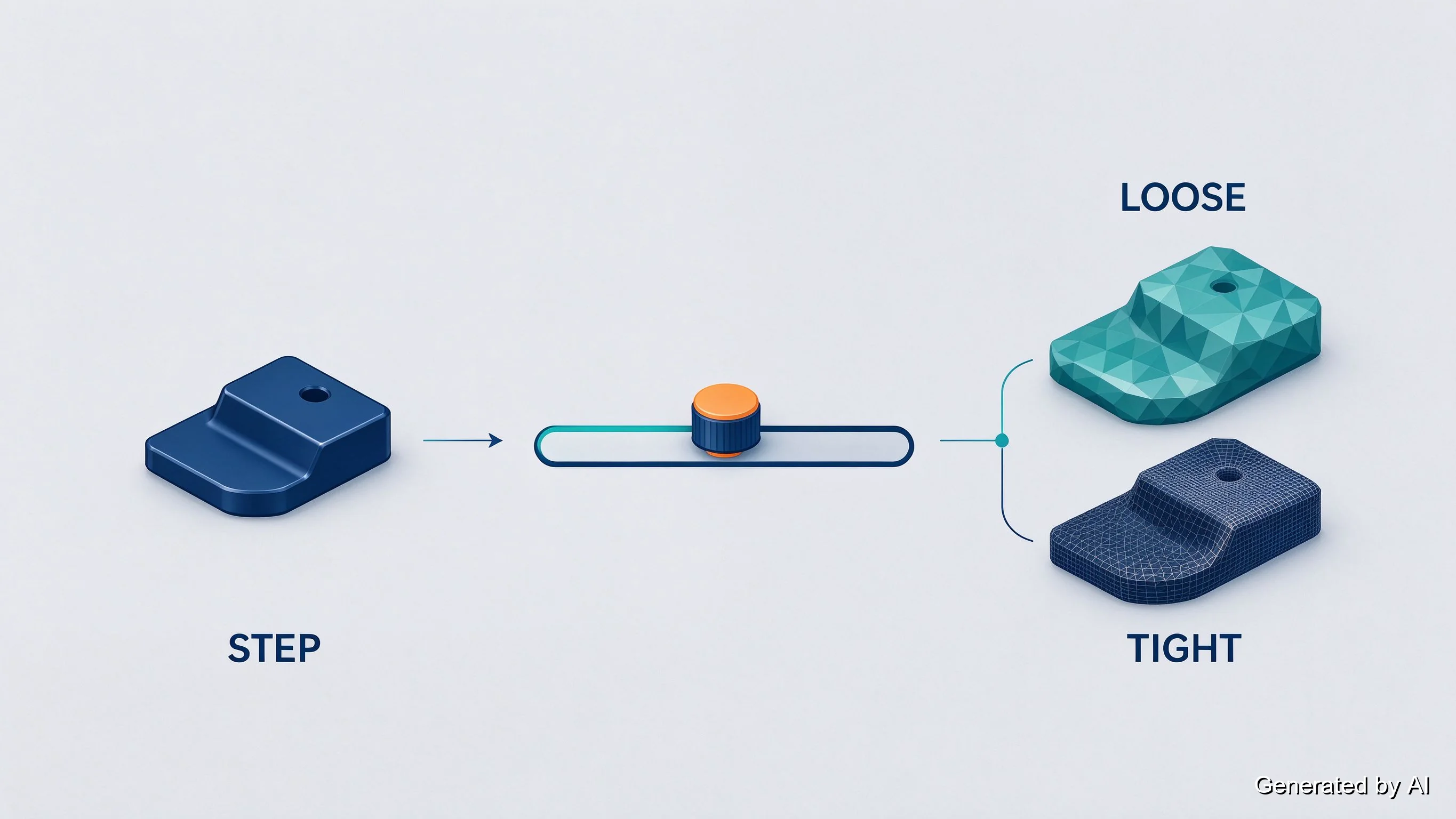
STEP solid to loose and tight meshes via tolerance slider
STL Back to STEP: The Reverse Is Not a Conversion
Search volume says plenty of people want stl to step, and the honest answer is that the reverse trip does not exist as a conversion. A mesh stores no parametric geometry; there is nothing to "restore." Tools that offer STL-to-STEP output are wrapping the triangle mesh in a STEP-format shell: the file will load in CAD software, but it is still a dumb mesh wearing a STEP label, with no editable cylinders, no feature tree, no design intent.
What people actually need when they search this splits into two real cases. Case one: you have the original design. Go back to the CAD source, edit there, and re-export both formats; that is the correct loop, and it is why keeping STEP originals matters. Case two: you only have the mesh (a scan, a downloaded model, a lost source file) and you need editable geometry. That is reverse engineering, reconstructing surfaces from scan data, and it is real engineering work with dedicated tooling, not a checkbox in a converter. Budget for it accordingly, or redesign the part from measurements if it is simple enough; our rule of thumb: if the part is simpler than a bracket, redraw it, and if it is not, treat reconstruction as a project.

wireframe target with triangles failing to rebuild it
When You Can Skip Converting Entirely
Here is the option most conversion guides leave out: the translation exists because somebody downstream needs a mesh, but a print service with engineering workflows does not. Upload the STEP (or the native CAD file) and the factory's engineers mesh it at production quality, with units verified and geometry checked as part of the quote; the conversion step simply moves from your desk to people who do it daily.
That is the standard route at JLC3DP: upload your model in native CAD or STEP format, get an engineer-reviewed quote, and the meshing happens on the production side. Upload your model for an instant quote and keep your originals untouched. Check the accepted upload formats on the quote page for the current list; supported CAD inputs can save the entire conversion section of this guide from being necessary at all.
For everyone printing on their own machine, the conversion stays part of life: convert once, with tolerances tuned, keep the STEP original, and archive both. The mesh goes to the printer; the truth stays in the CAD file.
FAQ about STP to STL Conversion
Q: What is an STP file?
A STEP file — the ISO 10303 standard CAD exchange format, carrying exact parametric solid geometry between different CAD systems. .step and .stp extensions refer to the same format. It is the standard way engineering designs travel between companies and software.
Q: Is STEP better than STL for 3D printing?
They do different jobs. STEP is the design-side format: exact, editable, unit-carrying. STL is the print-side format: a mesh every slicer reads. If your workflow includes a print service that accepts STEP, keep the STEP and skip the lossy conversion; if you slice locally, you need the STL export.
Q: How do I convert STP to STL?
Three routes: export STL directly from CAD software (most control over tolerances), use a desktop converter, or use an online tool for one-offs. Watch the units (STEP carries them, STL does not), tighten the chord-height tolerance for curved parts, and run a mesh-integrity check before slicing.
Q: Why does my converted STL look faceted?
The export's chord-height tolerance was too loose, so triangles approximate your curves with visible flat spans. Re-export with a tighter tolerance — the trade is a larger file and more triangles, which is usually worth it for visible curved surfaces.
Q: Can I convert STL back to STEP?
Not really. A mesh contains no parametric geometry to restore, so STL-to-STEP "converters" produce a mesh wrapped in a STEP shell that CAD still cannot edit as a solid. If you have the original design, edit there; if you only have the mesh, editable geometry means reverse engineering — surface reconstruction, a real project rather than a conversion.
Q: Do I need to convert STEP to STL at all?
It depends on where the file goes. Local slicing needs an STL. A print service with engineering workflows can often take STEP or native CAD directly and mesh it at production quality — JLC3DP accepts CAD uploads with engineer review, which removes the conversion step and its accuracy risks entirely.
Keep Learning
STP to STL: How to Convert STEP Files for Printing
Key Takeaways STP to STL conversion is a one-way translation: a STEP file holds exact, editable CAD geometry, and converting to STL replaces it with a triangle mesh approximation — the STEP original should always be kept. A step file (.step and .stp are the same format) is the standard exchange format of the CAD world; it stores precise surfaces and design intent, not triangles. Converting is free and fast — CAD software export, desktop converters, and online tools all work — but the mesh quality is o......
3D Printer Tools: Essential Accessories for 3D Printing Projects
If you own a 3D printer and want to make the printing process as smooth as possible and improve your 3D printing experience, the right 3D printer tools are worth equipping. This guide will recommend you common tools related to 3D printers, and you can choose according to your actual needs. 1. Print bed tools Print bed tools are important auxiliary tools for 3D printing. The following tools can reduce print failures caused by poor adhesion or damage to the bed surface. Glue sticks: Commonly used in FDM......
The Importance of 3D Scanners in 3D Printing: Improving Precision and Efficiency
3D printing can quickly transform digital models into entities, while 3D scanning generates digital models by capturing the three-dimensional shape of an object. The two are closely linked to form an efficient cycle, which not only improves production efficiency, but also opens up new ideas for design and manufacturing, and promotes the realization of a variety of applications from prototyping, customization to reverse engineering. Source: https://www.sculpteo.com/en/3d-learning-hub/basics-of-3d-print......
How to Edit STL Files: Tools and Techniques That Work
Key Takeaways You can edit STL files without going back to CAD: mesh editors handle scaling, cutting, combining, and sculpting directly on the triangle mesh. STL files carry no feature history, so CAD-style edits (change one hole diameter, thicken one wall) are not possible directly: you either edit the mesh or convert it back to a solid model first. The right STL editor depends on the job: Tinkercad or 3D Builder for quick scaling, Meshmixer for cutting and combining, Blender for sculpting, and FreeC......
Image to STL: Convert Images to STL Online for Free
Key Takeaways You can convert an image to STL — the right method depends on what the image shows: a photo becomes a lithophane relief, a logo becomes an extruded shape, or an object photo becomes an AI-generated mesh. Free online converters handle all three methods in a browser, no software install required — pick one based on your image type, not on a tool's marketing. Lithophanes encode photo brightness as thickness; the result prints in translucent filament and reveals the image under backlight. So......
How to Open STL Files: 4 Free Ways (Online, Windows, Mac)
Key Takeaways The fastest way to open an STL file is to drag it into a free online 3D viewer — no installation, works on any device with a browser. On Windows, the built-in 3D Viewer app ships with Windows 10 but may be missing on recent Windows 11 builds, and Paint 3D left the Microsoft Store in November 2024 — the built-in route is fading. macOS and phones ship with no STL viewer at all; a browser-based viewer covers both without installing anything. STL files carry no units. Always confirm the file......