How to Open STL Files: 4 Free Ways (Online, Windows, Mac)
16 min
- Method 1: Open STL Files in a Free Online Viewer
- Method 2: Use the Built-in Windows Viewers
- Method 3: View STL Files on a Mac or Phone
- Method 4: Slicers and Mesh-Processing Software
- Which STL Viewer Should You Use?
- What to Check Before You Print
- Why Won't Your STL File Open or Look Right?
- FAQ about Best Free STL Viewers
- From Viewing to Printing
Key Takeaways
- The fastest way to open an STL file is to drag it into a free online 3D viewer — no installation, works on any device with a browser.
- On Windows, the built-in 3D Viewer app ships with Windows 10 but may be missing on recent Windows 11 builds, and Paint 3D left the Microsoft Store in November 2024 — the built-in route is fading.
- macOS and phones ship with no STL viewer at all; a browser-based viewer covers both without installing anything.
- STL files carry no units. Always confirm the file was exported in millimeters before printing or ordering — a wrong unit setting scales the same model by 25.4×.
- A slicer doubles as an STL file viewer: dimensions, scale, and orientation are visible on the virtual print bed in one place.
- Before printing, check units, bounding-box size, triangle count, and visible mesh errors — a 100MB upload cap and minimum wall requirements are real limits, and each problem has a fix.
You double-click an STL file and nothing useful happens: Windows shows a dialog asking which app to use, and macOS does nothing at all. The file is fine. STL is a 3D printing format, and most computers ship without a program that renders it.
The fix costs nothing. Drag the file into a free online 3D viewer and the model appears in your browser in seconds. If you would rather keep the file on your own disk, a slicer or a desktop mesh tool opens it locally. Here are four ways, from the easiest to the most involved; the first one covers most people.
One sentence of background: an STL file stores a 3D surface as a mesh of triangles — no colors, no units, no assembly structure. If that raises questions, our guide to what an STL file actually is covers the format itself; this page is about getting it on your screen and knowing what you are looking at.
Method 1: Open STL Files in a Free Online Viewer
An online viewer does exactly what the name says: you open a website, drop the file onto the page, and orbit around the model. Nothing installs, nothing updates, and the same page works on a work laptop, a home PC, or a phone.
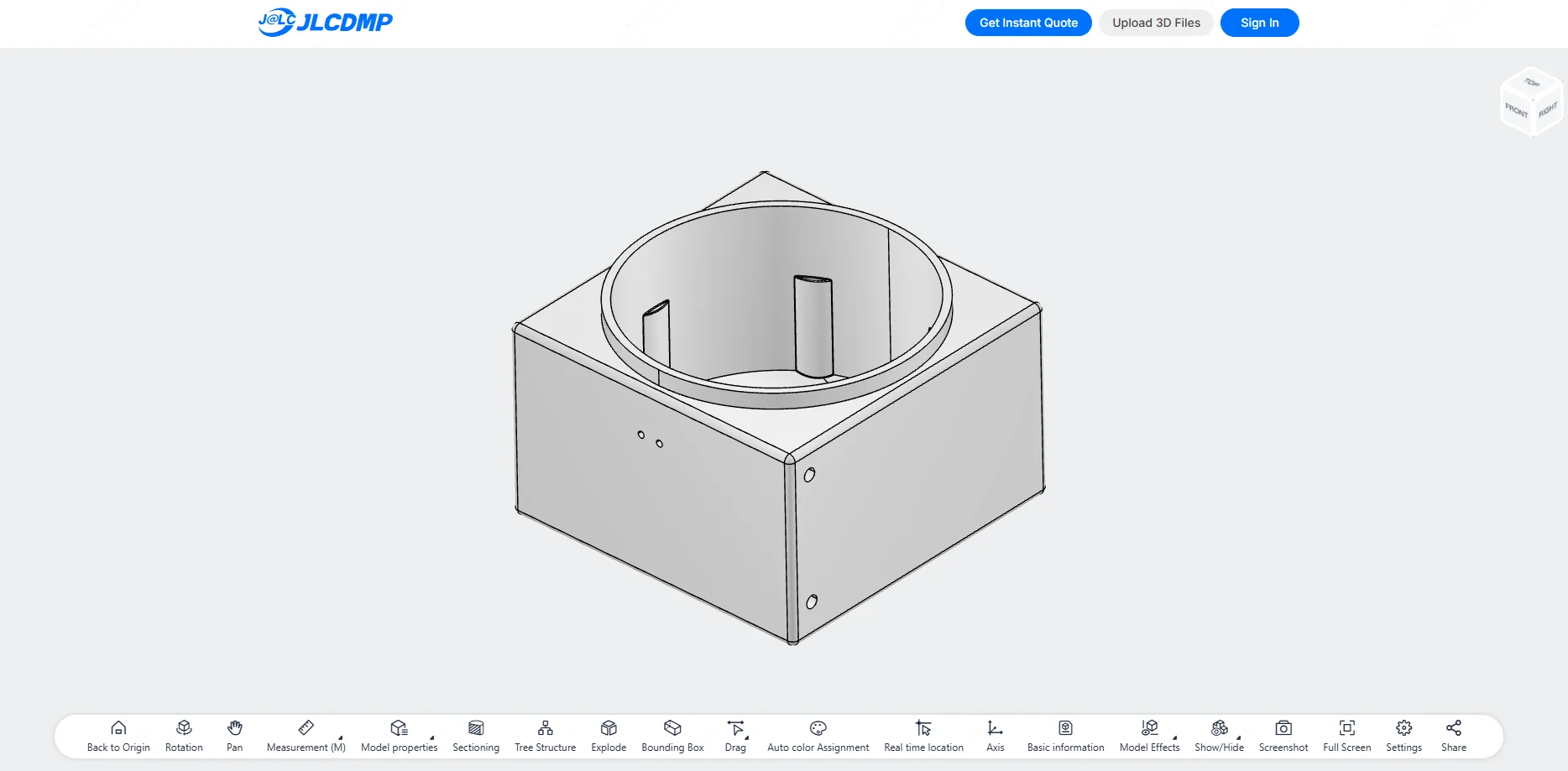
JLC's free online 3D viewer is built for exactly this job, and three of its capabilities matter for STL files in particular:
- It opens about 20 formats, including native CAD files such as STEP, STP, and even SolidWorks SLDPRT assemblies. Most online viewers accept mesh formats only, so if a supplier sends a STEP file instead of an STL, this route still works with no conversion step.
- It measures. Distance, length, angle, radius, surface area, and total volume are read directly on the model, and a bounding-box readout gives you the overall dimensions in one glance, which is exactly what the pre-print checks later on this page require.
- It shows the mesh itself: a wireframe toggle reveals triangle structure, and a transparency mode lets you look inside hollow parts.
It runs in three steps: open the viewer page, drag your file in (or click upload and browse), then rotate, zoom, and measure. For a ten-second sanity check of a single mesh, lighter tools such as viewstl.com do the job as well.
Files with very high triangle counts — laser scans that run into millions of faces — can stutter or hang a browser tab; desktop software (Method 4) handles those locally. And if the model belongs to a client under NDA, uploading it to a random web tool is a reasonable thing to hesitate over; in that case, again, keep it local.
Method 2: Use the Built-in Windows Viewers
Windows 10 shipped with two apps that open STL files, and their status in 2026 is worth a careful look, because one of them is on the way out.
3D Viewer is the one to try first. If it is on your machine, double-clicking an STL and choosing 3D Viewer (or opening the app and using File > Open) puts the model on screen with orbit, zoom, and pan. Two details make it more than a toy: the statistics panel shows the triangle and vertex counts of the loaded mesh (numbers you will want for the file-size check later), and the projection can be switched between perspective and orthographic, which helps when you are judging real proportions rather than admiring a render.
Whether you have it depends on your Windows version. On Windows 10 the app came preinstalled. On Windows 11 it may be missing entirely: on a recent build (26200) we checked, neither of the two apps in this section was present out of the box. If your Start menu has no 3D Viewer, the online route above is the fastest substitute, and the Store hunt is rarely worth the detour.
Paint 3D used to be the second built-in option, and it still opens STL files on machines that have it, with basic viewing plus some light editing. For new installations it is a dead end, though: Microsoft removed Paint 3D from the Microsoft Store on November 4, 2024, and it no longer receives updates. If it is already on your PC, it remains usable; if it is not, there is no supported way to get it, and nothing on this page depends on it.
Method 3: View STL Files on a Mac or Phone
Apple's operating systems ship with no STL support at all: Preview declines the format, and no other bundled app renders 3D meshes. On a Mac your realistic options are the browser route from Method 1 (fastest, nothing to install) or one of the desktop tools from Method 4 if you prefer local files. MeshLab and Blender both run natively on macOS and open STL without conversion.
Phones need less help than you might expect. Open a browser, go to an online viewer, and drop the model in; pinch to zoom and drag to orbit work exactly as they do in any map app. The JLC viewer runs on phone browsers as well, measurements included, which is handy when a supplier emails a model and you want to sanity-check it away from your desk. Dedicated STL viewer apps exist in both app stores, but for occasional viewing they add little over the browser.
One phone-specific caution: very large files load slowly over mobile data, and a multi-million-triangle scan that already strains a desktop browser will usually time out on a phone. Send yourself the link and open it on a bigger screen.
Method 4: Slicers and Mesh-Processing Software
Desktop software for STL files comes in two kinds, and the line between them is thinner than it looks.
If the model exists to be printed, skip dedicated viewers entirely: slicer software is a viewer with a print bed attached. The two leading free options, Cura and PrusaSlicer, both open STL files on Windows, macOS, and Linux. Cura skews beginner-friendly and runs everywhere; PrusaSlicer trades a steeper first hour for finer control.
It takes under a minute to put the model on a virtual bed drawn to real scale. Open the slicer and drag the STL onto the window (or use File > Open File). The bed is a ruler you did not have to set up: a 60mm bracket occupies a 60mm footprint next to the machine's build area, and the slicer's readout confirms the dimensions. From there you can scale, rotate, and orient the model, and both slicers will warn you outright if it overhangs the build volume.
That warning is the quiet advantage over every pure viewer: a slicer judges the model against a physical machine instead of just displaying it. Scale errors, a bed too small, a part oriented with flat sections facing the wrong way — these surface as concrete alerts while you are still looking at the file, which is the cheapest possible moment to find them. Both slicers also accept OBJ and 3MF, so a mixed-format project stays in one tool.
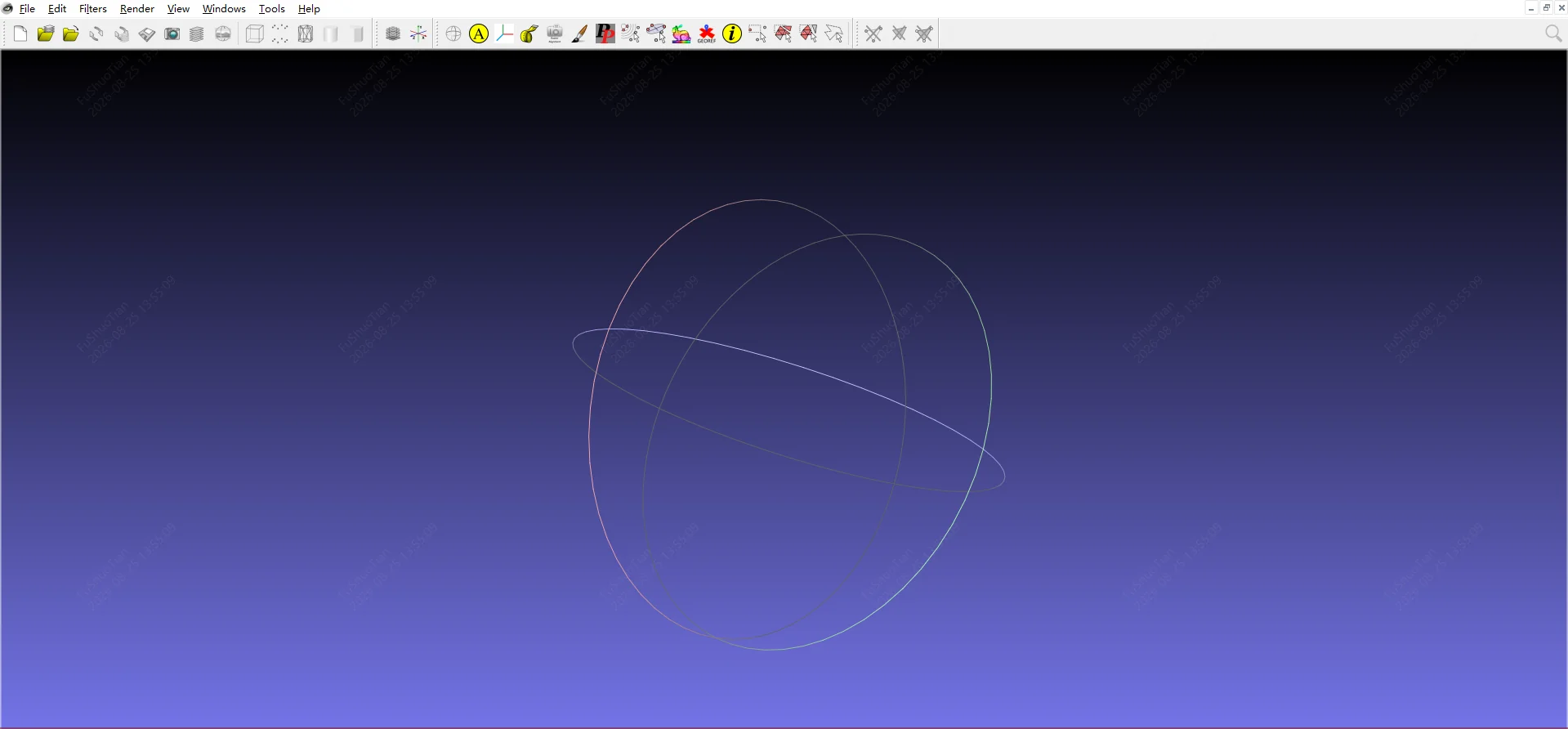
When the job is inspecting or repairing rather than printing, mesh-processing tools open the model locally and never upload anything. MeshLab is the free, open-source workhorse: it loads meshes that bring browser tabs to their knees (scanned archives with millions of triangles typically open in seconds on a reasonable machine), and it reports what a viewer hides — non-manifold edges, boundary holes, duplicate vertices — as diagnostics rather than leaving you to squint. Repair filters are built in, which makes MeshLab the natural second stop after a viewer shows you something wrong. Windows' own 3D Builder also opens STL files and offers one-click mesh repair, a no-install option worth knowing about.
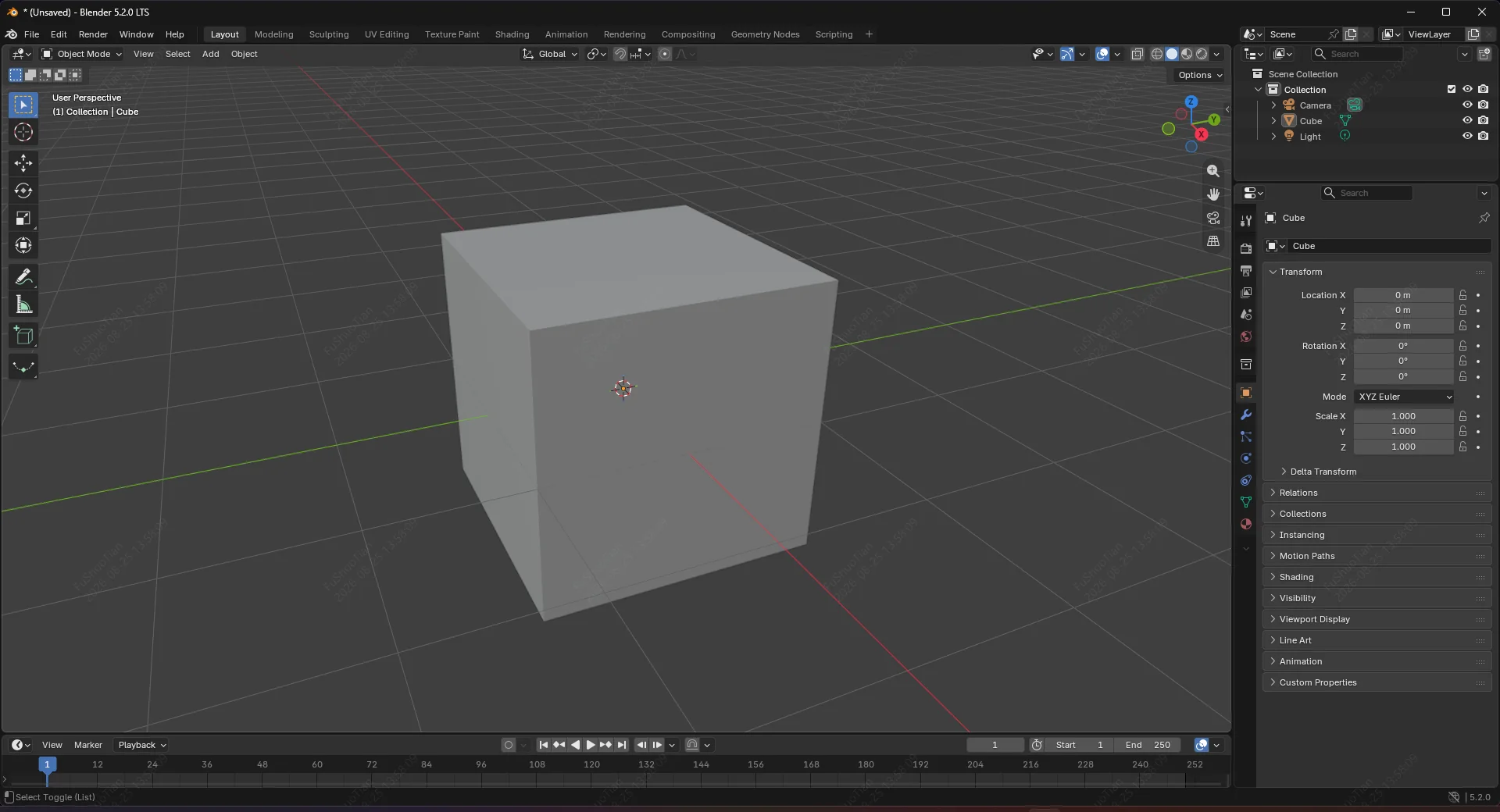
Blender is the other free, open-source heavyweight. It renders, edits, and repairs meshes with full control, at the price of a learning curve that is famous for good reason. For pure viewing it is overkill; for inspecting a model you intend to modify, it is the tool that will still be around when the quick job becomes a real one.
CAD software earns one paragraph rather than a section here, because it opens STL files as a courtesy, with the mesh treated as a reference object rather than editable geometry. FreeCAD, free and open source, imports STL and can convert the mesh into a solid you can actually edit — the practical bridge when a model needs dimensional changes rather than repair. Commercial packages such as Fusion 360 import STL for reference and measurement in much the same way.
The two categories are converging from the industrial side. The most-used professional package, Materialise Magics, does model repair, editing, and build preparation in a single seat, which is exactly what a production floor wants; on a free budget, the combination of a mesh tool plus a slicer covers the same ground in two steps.
Which STL Viewer Should You Use?
| Tool | Install | Cost | Huge files | Measures | Edits | Best for |
|---|---|---|---|---|---|---|
| JLC online viewer | None | Free | Stutters on very large | Yes — full suite, incl. volume and bounding box | No | Quick looks, measuring, CAD formats |
| Other online viewers (viewstl etc.) | None | Free | Stutters on very large | Some do, partially | No | Ten-second checks, phones |
| Windows 3D Viewer | Preinstalled on Win10 | Free | Moderate | Yes | No | Windows 10 machines |
| Cura / PrusaSlicer | Yes | Free | Yes | Yes | Scale, cut | Anything heading to a printer |
| MeshLab | Yes | Free, open source | Yes | Yes | Repair filters | Heavy scans, mesh diagnostics |
| Blender | Yes | Free, open source | Yes | Yes | Full editing | Inspection plus modification |
| Materialise Magics | Yes | Paid, industrial | Yes | Yes | Repair + full editing | Production data prep in one seat |
Pick by scenario, not by rankings: look fast → browser; verify dimensions for an order → a viewer with measurement or a slicer; prepare a print → the slicer; interrogate a heavy or broken mesh → MeshLab.
What to Check Before You Print
Opening the file is step one. Verifying it is what saves the print — or the order. Four checks, in the order they bite people:
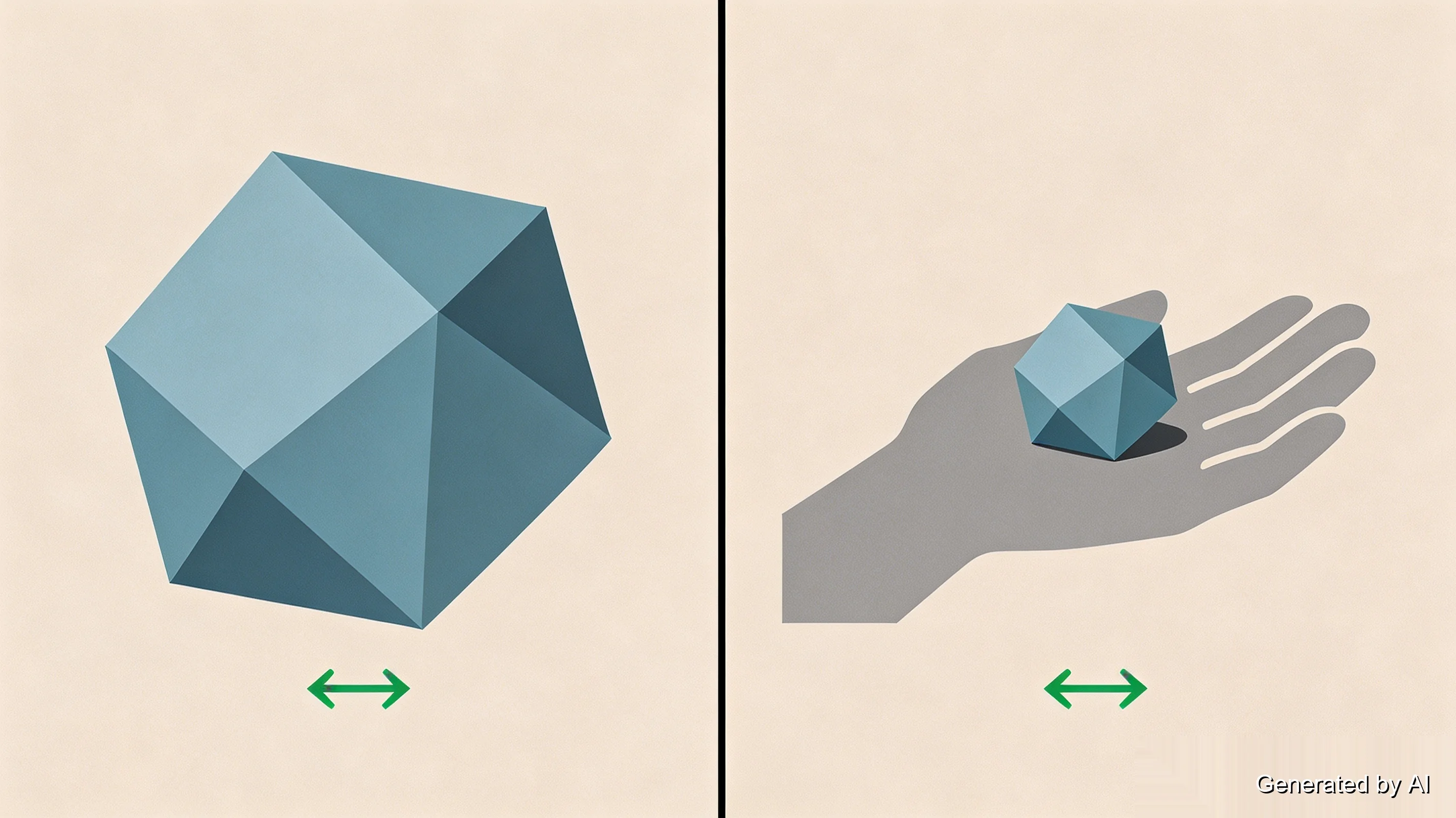
Units. An STL file stores raw coordinates with no unit attached. A model defined as "10" wide could be 10mm — a keychain charm — or 10 inches, a chunky desktop object, and the two are a factor of 25.4 apart. Print services see this weekly: a part arrives 25 times too large because the export was in inches. The unit was decided in the CAD export dialog, before the STL existed, and no viewer can tell you what was intended; what a viewer can do is show the number so you can judge whether it is plausible. Services expect millimeters — JLC3DP included — so if the number looks wrong, re-export from the source in mm rather than rescaling the mesh blindly.
Overall size. Measure the bounding box — the JLC viewer shows it in one readout, and a slicer shows it against the bed. Most desktop printers top out near 300mm per side; anything larger needs either a large-format service or a decision to split the model into sections printed separately and joined afterward.
Triangle count and file size. The statistics panel of your viewer gives the face count, and file size follows it. Triangle count is also a fidelity question: every triangle is a flat facet approximating a curved surface, and too few facets show up as visible faceting on the print — the gap between the ideal curve and the flat facet is what export resolution controls. Upload limits are a real constraint (JLC3DP caps a single model file at 100MB), and a scan exported at full detail can sail past it; the fix is reducing the triangle count, which for printing purposes usually costs nothing visible. And if a file looks absurdly large for its triangle count, check its encoding: STL comes in ASCII and binary flavors, and resaving an ASCII file as binary shrinks it dramatically with zero loss.
Visible defects. Rotate the model and look through it: holes, missing faces, and walls that show the interior through the surface are all visible in wireframe or transparency mode. These are mesh errors, and they have a dedicated fix — covered with the repair tools above.
Once the model passes your own checks, uploading it takes the verification further: JLC3DP's system automatically checks dimensions, wall thickness, and weight, applying process-specific limits — a wall that survives FDM handling may be too thin for a powder-bed part. An engineer reviews the model before anything goes to production, and you can upload it for an instant quote and see the results without committing to an order.
Why Won't Your STL File Open or Look Right?
The file refuses to open anywhere. First try a different viewer: if the model loads on a second tool, the file is fine and the first app was the problem. If nothing opens it, the likely causes are a truncated download (compare the file size against the source), an extension that lies (a .stl that is actually a renamed archive or HTML page), or genuine corruption. Corrupted meshes can often be recovered — our STL repair guide walks through the tools that do it.
The model opens at an absurd size. A part that should be palm-sized filling the screen, or a building-sized object rendering as a speck, is the unit trap from the previous section, and it is the single most common "my file is broken" report that is not actually broken. Fix it at the export source.
Everything loads, then freezes. The mesh is heavier than the tool: triangle counts in the millions can stall browser viewers and underpowered machines alike. Reduce the face count, or switch to MeshLab, which was built for meshes of that size.
Surfaces render black or inside-out. Faces whose normals point the wrong way display as dark or inverted patches. Many viewers can shade over it for display purposes, but the underlying mesh still carries the defect; flip the normals in a mesh editor before sending the file to print.
FAQ about Best Free STL Viewers
Q: How do I open an STL file on a Mac?
macOS bundles no STL viewer, so use a browser-based viewer for a quick look or install MeshLab (lightweight) or Blender (full-featured) to open the file locally. Both are free.
Q: Can I view STL files on my phone?
Yes. Open an online viewer in your phone's browser and load the file — pinch and drag navigation works like any map app. Very large meshes are the exception; they load slowly or time out on mobile.
Q: Why won't my STL file open?
Either the file or the app is at fault. Test the file in a second viewer; if it loads, your first tool was the issue. If it fails everywhere, the download may be truncated, the extension misleading, or the mesh corrupted — repair tools can often recover it.
Q: What is the best free STL viewer?
It depends on the job: online viewers for instant looks, JLC's online viewer when you need measurements or it is a CAD format like STEP, a slicer when the model is headed to a printer, and MeshLab for heavy scans or mesh diagnostics.
Q: Can I edit an STL file after opening it?
Yes — beyond light edits like cutting, scaling, and filling holes, Blender and most mesh-processing tools can change dimensions directly on the mesh: scaling the whole model, trimming features, repositioning bosses and holes. What still calls for CAD is parametric redesign — editing features and design intent rather than the mesh itself — with FreeCAD as the free route via mesh-to-solid conversion. Mesh errors are repair work rather than editing. If you are weighing which format to share models in, our 3D file formats comparison covers STL against OBJ, 3MF, and the rest.
Q: How do I set a default program for STL files?
On Windows, right-click any STL file, choose "Open with" → "Choose another app", pick the viewer you prefer, and tick "Always". On macOS there is no default STL handler to assign — keep using a browser viewer, or open files from inside MeshLab or Blender.
From Viewing to Printing
Every route on this page feeds the same pipeline: open the file to see it, verify it to trust it, then print it. A browser viewer answers "what is this model" in ten seconds; the units, size, triangle count, and defect checks answer "will it print" before any money is on the line. Once both answers look right, the manufacturing is the easy part.
Keep Learning
3D Printer Tools: Essential Accessories for 3D Printing Projects
If you own a 3D printer and want to make the printing process as smooth as possible and improve your 3D printing experience, the right 3D printer tools are worth equipping. This guide will recommend you common tools related to 3D printers, and you can choose according to your actual needs. 1. Print bed tools Print bed tools are important auxiliary tools for 3D printing. The following tools can reduce print failures caused by poor adhesion or damage to the bed surface. Glue sticks: Commonly used in FDM......
The Importance of 3D Scanners in 3D Printing: Improving Precision and Efficiency
3D printing can quickly transform digital models into entities, while 3D scanning generates digital models by capturing the three-dimensional shape of an object. The two are closely linked to form an efficient cycle, which not only improves production efficiency, but also opens up new ideas for design and manufacturing, and promotes the realization of a variety of applications from prototyping, customization to reverse engineering. Source: https://www.sculpteo.com/en/3d-learning-hub/basics-of-3d-print......
How to Edit STL Files: Tools and Techniques That Work
Key Takeaways You can edit STL files without going back to CAD: mesh editors handle scaling, cutting, combining, and sculpting directly on the triangle mesh. STL files carry no feature history, so CAD-style edits (change one hole diameter, thicken one wall) are not possible directly: you either edit the mesh or convert it back to a solid model first. The right STL editor depends on the job: Tinkercad or 3D Builder for quick scaling, Meshmixer for cutting and combining, Blender for sculpting, and FreeC......
Image to STL: Convert Images to STL Online for Free
Key Takeaways You can convert an image to STL — the right method depends on what the image shows: a photo becomes a lithophane relief, a logo becomes an extruded shape, or an object photo becomes an AI-generated mesh. Free online converters handle all three methods in a browser, no software install required — pick one based on your image type, not on a tool's marketing. Lithophanes encode photo brightness as thickness; the result prints in translucent filament and reveals the image under backlight. So......
How to Open STL Files: 4 Free Ways (Online, Windows, Mac)
Key Takeaways The fastest way to open an STL file is to drag it into a free online 3D viewer — no installation, works on any device with a browser. On Windows, the built-in 3D Viewer app ships with Windows 10 but may be missing on recent Windows 11 builds, and Paint 3D left the Microsoft Store in November 2024 — the built-in route is fading. macOS and phones ship with no STL viewer at all; a browser-based viewer covers both without installing anything. STL files carry no units. Always confirm the file......
OrcaSlicer vs Prusa, Bambu & Cura: All Features, Pros & Cons Compared
Orca Slicer is gaining fans fast, but is it really better than the slicers we’ve trusted for years? Whether you're troubleshooting stringy overhangs, dialing in support settings, or optimizing for speed, your slicer software plays a massive role in how your final print turns out. And with the growing popularity of Orca Slicer, especially among Bambu Lab users and tinkerers looking for more control, the question arises: how does it actually stack up against Cura, PrusaSlicer, and Bambu Studio? In this ......